
4.4 KiB
Introduction
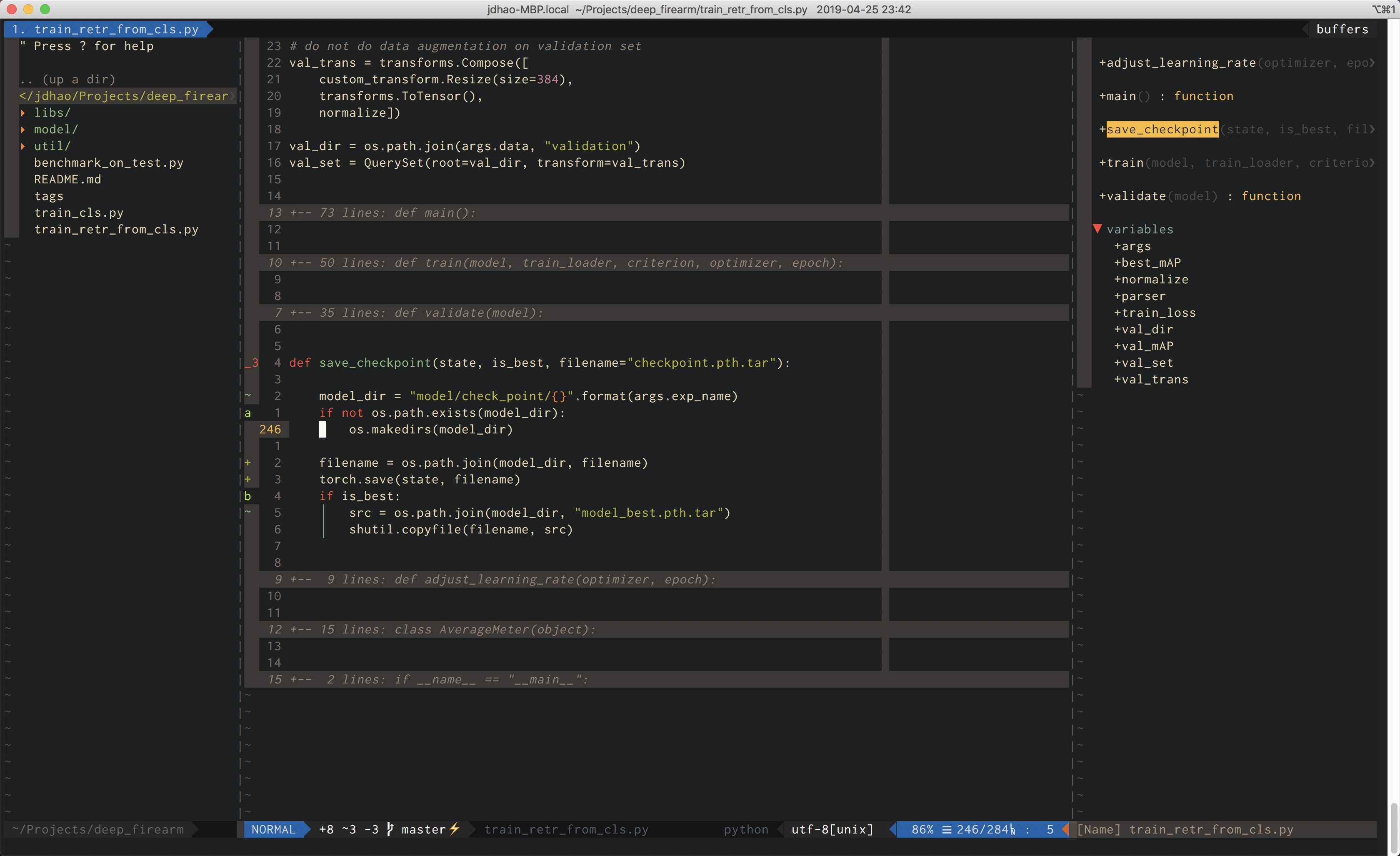
This is my Neovim configuration for all the platforms I use. init.vim is for
terminal Neovim and ginit.vim is for GUI client for Neovim (currently I am
using neovim-qt) on Windows.
How to Install Neovim
Linux
Just follow the official guide and download the appimage from the release page.
For some Linux systems, you may not be able to run the appimage. You can directly download the tar ball from here and extract it.
Windows
The easiest way to install Neovim on Windows is via chocolatey. First, install chocolatey. Then you can install neovim easily with
# install latest version of neovim
# choco install neovim --pre

choco install neovim
To keep up-to-date with the latest features of Neovim, you may download the latest release from GitHub and extract it.
Mac
It is recommended to install neovim via Homebrew on maxOS. Simply run the following command:
# if you want to install latest version of neovim
# brew install --HEAD neovim

brew install neovim
After Neovim is installed, you may need to add the directory where the neovim
executable (nvim on Linux and Mac, nvim.exe on Windows) resides to your
system PATH.
Make sure that you can call nvim from the command line after all these setup.
Other tools to install
Python
Neovim supports both Python2 and Python3. But Python3 is preferable. Neovim will automatically detect the Python version you use.
pynvim
Neovim relies on pynvim to communiate with plugins which utilizes its Python binding.
Git
Git is used by plugin managers vim-plug to download plugins from Github or other Git repositories.
Since Git is usually pre-installed on Linux and Mac, you do not need to worry
if you are on these two platforms. For Windows, install Git for
Windows and make sure you can call git
from command line.
ctags
In order to use tags related plugins such as tagbar and gutentags, you need to install a ctags distribution. Universal ctags is preferred.
To install ctags on Mac, use Homebrew. To install it Windows, use chocolatey:
choco install universal-ctags
To install it on Linux, you need to build it yourself. See
here.
Set its PATH properly and make sure you can call ctags from command line.
Ripgrep
Ripgrep is fast greping tool available for both Linux, Windows and Mac. It is used by several searching plugins for Vim.
For Windows and Mac, you can install it via chocolatey and homebrew. For Linux, you can download from the release page and install it.
Linters
A linter is a tool to check your code for possible issues or errors. Based on your programming languages, you may need to install various linters.
- Python: pylint and flake8.
- Vim script: vint (You may need to install the pre-release versions because of this issue).
For other linters, please consult the linting plugin documentation. For Neomake (which is the linting plugin I currently use), a list of makers (i.e., linters) for different languages is listed here.
Settings
Where to put the configuration file
On Windows, put it under $HOME/AppData/Local/nvim1. On Linux and Mac, put
it under ~/.config/nvim.
Further reading
-
Use
echo %userprofile%to see where your$HOMEis. ↩︎